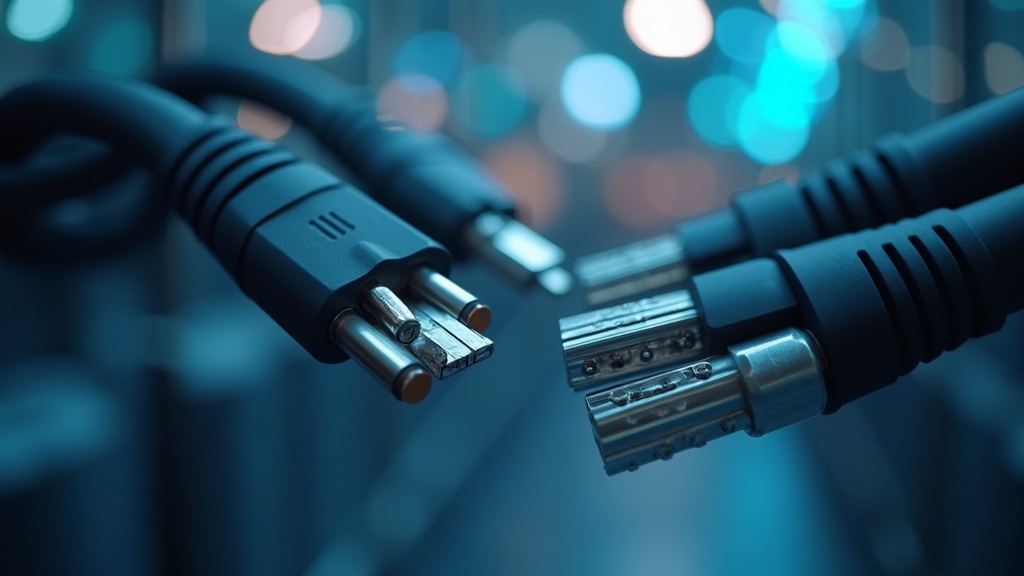
Cables Guide: Types, Buying Tips, and Connectivity Solutions








Discover everything you need to know about cables for laptops, monitors, and home electronics. This guide covers cable types, performance standards, buying tips, and how to choose the right connectivity products for your setup.
Table of Contents
- Cable Types and Their Uses
- Performance Standards and Specifications
- Cable Management and Organization
- Choosing the Right Cable for Your Needs
- Frequently Asked Questions
- Comparison Table
- Practical Tips
- Final Thoughts on Cables
Market Snapshot
- The U.S. wires and cables market size in 2024 was valued at 31.93 billion USD (Grand View Research, 2025)[1]
- The U.S. wires and cables market is expected to reach 33.51 billion USD in 2025 (Grand View Research, 2025)[1]
- The cable management market was valued at approximately 15 billion USD in 2021 (Netceed, 2025)[2]
Cables form the invisible backbone of our digital lives. From charging a smartphone to streaming 4K video, the right cable ensures reliable performance and fast data transfer. This article explores the most common cable types, their performance specifications, how to keep them organized, and tips for selecting the best option for your home or office setup.
Cable Types and Their Uses
Cables come in many shapes and sizes, each designed for specific tasks. The most common types include HDMI, USB, Ethernet, and power cables. HDMI cables transmit high-definition video and audio from devices like laptops to monitors or TVs. USB cables connect peripherals such as keyboards, mice, and external drives, and also charge devices. Ethernet cables provide stable wired internet connections, often preferred for gaming or streaming. Power cables deliver electricity from wall outlets to devices. Understanding these basic categories helps you pick the right cable for each device in your home or office.
Specialized cables also exist for niche applications. For example, DisplayPort cables are common in high-end monitors, while Thunderbolt cables offer very high data transfer speeds for professional video editing. Audio cables like 3.5mm aux or optical cables connect speakers and headphones. Each cable type has a unique connector shape and pin configuration, so it is important to match the cable to the device port. When shopping for HDMI cables for laptops, ensure the version supports your laptop’s output resolution, such as HDMI 2.0 for 4K at 60Hz.
USB Cable Variants
USB cables have evolved through several standards. USB-A is the classic rectangular connector found on most computers. USB-C is a newer, reversible connector that supports faster charging and data transfer. USB 3.0 and USB 3.1 offer speeds up to 5 Gbps and 10 Gbps respectively. USB 4 reaches up to 40 Gbps and is backward compatible. For charging, USB-C Power Delivery (PD) can deliver up to 100W, enough to power a laptop. When choosing a USB cable, check both the connector type and the version to ensure compatibility with your device.
Performance Standards and Specifications
Not all cables are created equal. Performance is determined by factors like bandwidth, shielding, and conductor quality. For HDMI, versions range from 1.4 (supports 4K at 30Hz) to 2.1 (supports 8K at 60Hz and dynamic HDR). Higher bandwidth cables handle more data, reducing lag and improving picture quality. Ethernet cables are categorized by Cat standards: Cat5e supports up to 1 Gbps, Cat6 up to 10 Gbps at shorter distances, and Cat6a up to 10 Gbps at 100 meters. Shielding protects against electromagnetic interference, which is crucial in environments with many electronic devices. The wire and cable market was projected to grow at 5 percent annual growth rate in one industry estimate (Consolidated Electronic Wire & Cable, 2025)[3], showing the increasing demand for high-performance cables.
Material quality also affects performance. Copper conductors offer better conductivity than copper-clad aluminum (CCA). Gold-plated connectors resist corrosion and provide a more reliable connection. Cable length matters too: longer cables can experience signal degradation, especially for high-bandwidth applications like 4K video or 10 Gbps networking. For most home setups, cables under 15 feet work well. If you need longer runs, consider active cables or signal boosters. Always check the specifications of your devices to match the cable’s capabilities.
Cable Management and Organization
A cluttered desk with tangled cables reduces productivity and can even damage connectors. Cable management involves organizing and securing cables to keep them tidy and accessible. Simple solutions include using cable ties, Velcro straps, or cable sleeves to bundle wires together. Desk-mounted cable trays hide excess length under the desk. Labeling both ends of each cable makes troubleshooting easier. The cable management market is projected to grow at a 7-9 percent CAGR over the next decade (Netceed, 2025)[2], reflecting the growing awareness of workspace organization.
For permanent installations, consider using cable raceways or conduit to run cables along walls. Floor cord covers protect cables in high-traffic areas. Wireless alternatives like Bluetooth mice and keyboards reduce cable count, but peripherals like monitors and printers still need wired connections. A well-organized cable setup not only looks better but also improves airflow around electronics, reducing heat buildup. Regularly inspect cables for wear, such as frayed ends or bent connectors, and replace damaged ones promptly to avoid short circuits or data loss.
Choosing the Right Cable for Your Needs
Selecting the correct cable depends on your devices and how you use them. Start by identifying the ports on your laptop, monitor, or other equipment. For example, if your laptop has a USB-C port that supports DisplayPort Alt Mode, you can use a USB-C to HDMI cable instead of a separate adapter. For gaming or professional video work, prioritize high-bandwidth cables like HDMI 2.1 or DisplayPort 1.4. For office tasks, standard HDMI 1.4 or USB 3.0 cables are sufficient. Always buy from reputable brands to ensure quality and safety certifications.
Consider future-proofing your purchase. As technology advances, new standards emerge. Investing in a higher-spec cable today can save you from replacing it later. For instance, an HDMI 2.1 cable works with current 4K devices and will support future 8K equipment. Similarly, USB 4 cables are backward compatible with USB 3 and USB 2 devices. If you have multiple devices, a quality HDMI cable for laptops can serve both your work laptop and your home entertainment system. Always check the cable’s rated speed, power delivery, and connector type before buying.
Important Questions About Cables
What is the difference between HDMI 2.0 and HDMI 2.1?
HDMI 2.0 supports 4K resolution at 60Hz with a bandwidth of 18 Gbps, while HDMI 2.1 supports up to 8K at 60Hz or 4K at 120Hz with a bandwidth of 48 Gbps. HDMI 2.1 also includes features like Variable Refresh Rate (VRR) and Enhanced Audio Return Channel (eARC), making it ideal for gaming and high-end home theater systems. For most laptop users, HDMI 2.0 is sufficient for 4K video output, but if you plan to use a 4K 120Hz gaming monitor, HDMI 2.1 is recommended.
Can I use a USB-C cable to charge my laptop?
Yes, if your laptop supports USB-C Power Delivery (PD). Many modern laptops, including MacBooks and some Windows ultrabooks, can charge via USB-C PD. The cable and charger must support the wattage required by your laptop, typically 45W to 100W. Using a lower-wattage charger may charge slowly or not at all. Always check your laptop’s specifications for the required power input. A USB-C to USB-C cable rated for 100W PD is a versatile choice for both charging and data transfer.
How long can an Ethernet cable be before signal loss occurs?
For standard Ethernet cables like Cat5e, Cat6, and Cat6a, the maximum recommended length is 100 meters (about 328 feet) before signal degradation becomes significant. Beyond this distance, you may experience packet loss or reduced speed. For longer runs, use a network switch or a signal repeater. In home environments, most cables are well under this limit, so signal loss is rarely an issue. Always use solid copper cables rather than CCA for permanent installations to ensure reliable performance over longer distances.
What does cable shielding do?
Cable shielding protects the inner conductors from electromagnetic interference (EMI) and radio frequency interference (RFI). This is important in environments with many electronic devices, such as offices or home theaters, where interference can cause signal degradation. Shielded cables (often labeled STP or FTP) have a metal foil or braided mesh around the conductors. Unshielded cables (UTP) are lighter and more flexible but offer less protection. For most home use, unshielded cables work fine, but for long runs or industrial settings, shielded cables are recommended.
Comparison Table: Common Cable Types
Choosing between cable types depends on your specific needs. The table below compares the most common cables for laptops and home electronics.
| Cable Type | Primary Use | Max Data Speed | Max Resolution |
|---|---|---|---|
| HDMI 2.0 | Video/audio from laptop to monitor/TV | 18 Gbps | 4K at 60Hz |
| HDMI 2.1 | High-end gaming, 8K video | 48 Gbps | 8K at 60Hz |
| USB 3.0 (USB-A) | Data transfer, peripherals | 5 Gbps | N/A |
| USB-C with PD | Charging, data, video | Up to 40 Gbps (USB 4) | 4K at 60Hz |
| Ethernet Cat6 | Wired internet connection | 10 Gbps | N/A |
Practical Tips for Cable Buying and Maintenance
Follow these actionable tips to get the most out of your cables. First, always buy cables that are certified by the relevant standards body, such as HDMI Licensing Administrator or USB-IF. Certified cables guarantee performance and safety. Second, avoid over-coiling or bending cables sharply, as this can damage internal wires. Use cable organizers like spiral wraps or cable clips to maintain shape. Third, label your cables with small tags or colored tape to identify which device each one connects to, especially in a multi-monitor setup.
Fourth, consider cable length carefully. Measure the distance between devices before buying. A cable that is too long creates clutter, while one that is too short may not reach. Fifth, invest in a few high-quality cables for your primary devices instead of many cheap ones. Quality cables last longer and provide better performance. Sixth, periodically check cables for wear, especially at the connector ends. If you see exposed wire or bent pins, replace the cable immediately to prevent damage to your devices.
Final Thoughts on Cables
Cables are a fundamental part of modern technology, connecting our devices and enabling seamless communication. By understanding the different types, performance standards, and best practices for organization, you can make informed choices that improve your workflow and entertainment experience. Whether you need a reliable HDMI cable for your laptop or a durable Ethernet cable for your home network, investing in quality cables pays off in performance and longevity. For more information on selecting the right connectivity products, explore our detailed cat bracelets and chakra bangle collections, or check out HDMI cables for laptops to ensure you get the best connection for your devices.
Useful Resources
- U.S. Wires & Cables Market Size & Trends. Grand View Research.
https://www.grandviewresearch.com/industry-analysis/us-wires-cables-market-report - How Emerging Trends & Innovations Are Shaping the Cable Management Industry. Netceed.
https://netceed.com/fr/en/news/how-emerging-trends-innovations-are-shaping-the-cable-management-industry/ - What’s New in the Industry: Current Trends for Wire and Cable. Consolidated Electronic Wire & Cable.
https://www.conwire.com/blog/whats-new-in-the-industry-current-trends-for-wire-and-cable/